Komma CSV is a minimalist CSV editor for Mac. Edit cell contents, find and replace text, and sort complete rows.
Open a CSV file
- Choose File → Open… or press ⌘O.
- Select a CSV, TSV or text file.
- Check the columns and the Header row setting after opening.
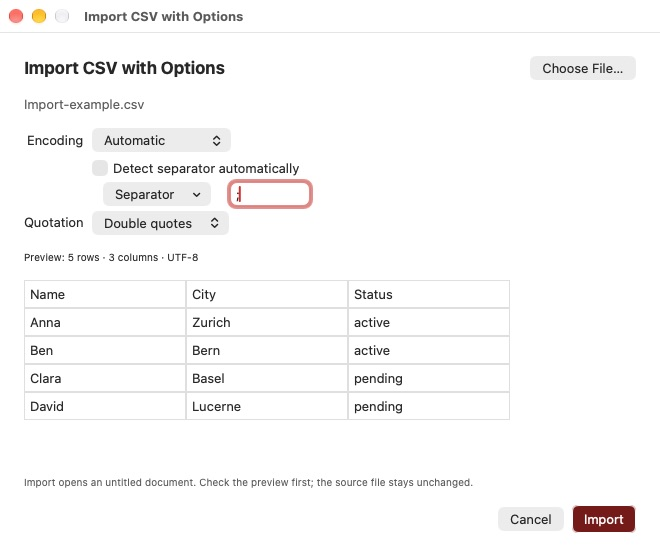
Komma detects commas, semicolons, tabs or pipes as separators. Without an Excel separator directive (sep=), detection uses the first non-empty record. For other or ambiguous formats, choose File → Import CSV with Options… and check the preview.
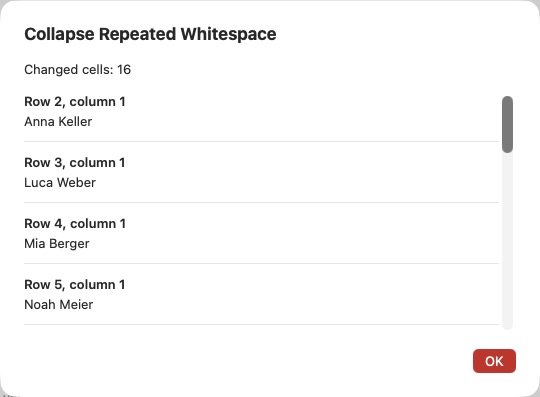
When opening or importing a file, Komma CSV checks cell contents for leading or trailing whitespace. If found, a prompt shows the number of affected cells. Keep Unchanged preserves the contents. Remove Whitespace removes leading and trailing spaces, nonbreaking spaces, tabs and line breaks, including in headings. Whitespace within the content stays unchanged. A cell containing only whitespace becomes empty. Use ⌘Z to undo the entire correction. The prompt appears once per opened document; reopening the file checks it again.
Work in the table
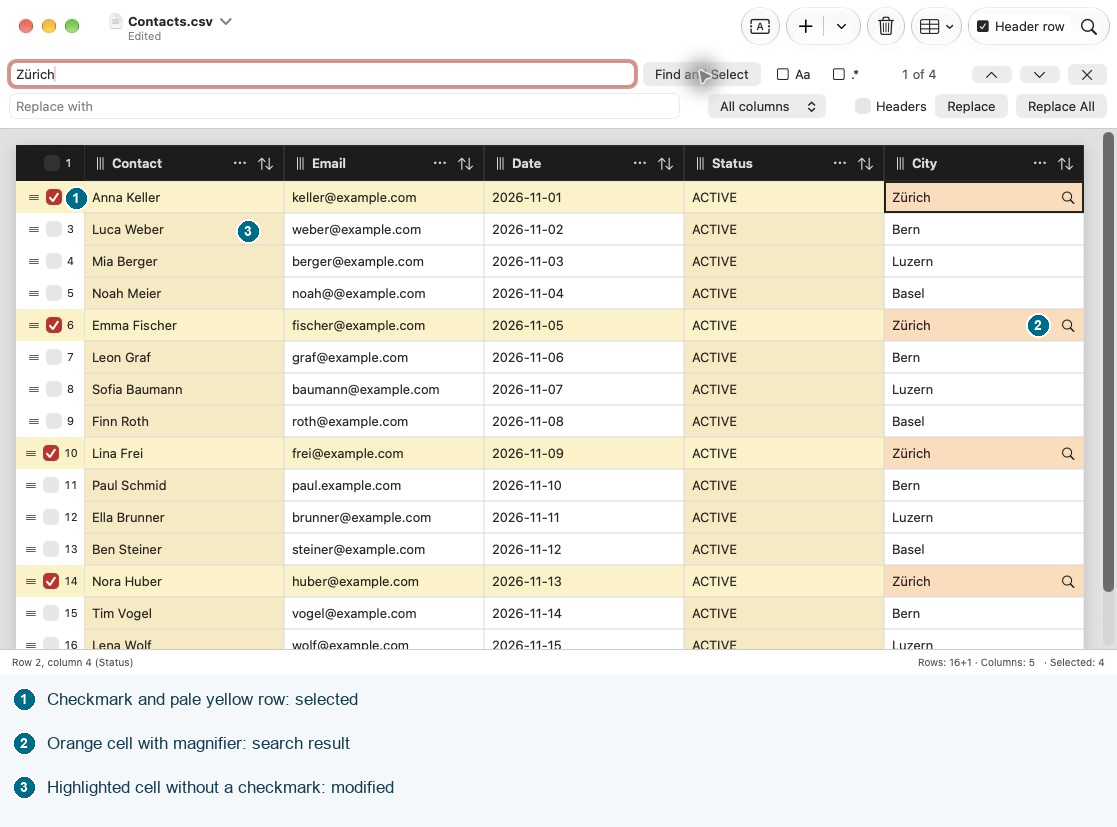
Click a data cell to edit its contents directly. The column bar stays visible while scrolling vertically. It uses the same background as ordinary cells, with bold titles.
Click a column title or row number to select that column or row. Click once again to deselect it. Selected columns and data rows reveal an ellipsis menu button and a drag handle. Double-click to select and open the corresponding menu immediately.
The footer on the right shows data row and column counts and, when applicable, the selected row count. With Header Row enabled, Rows: 5+1 means five data rows plus one header row – six rows in total. Without a header it shows the total directly.
The active cell position appears on the left. With a header it includes the column name, for example “Row 3, column 2 (Product)”. Both numbers start at 1 and the header counts as a row here. Dashes appear when no cell is active. An active sort is also shown in the footer.
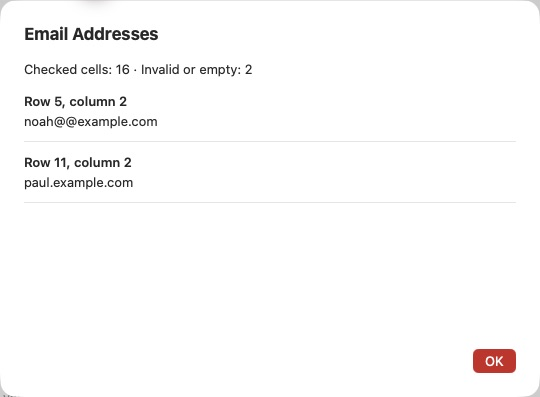
The arrow beside a column title cycles through ascending, descending and original order. The column menu provides additional structure, validation and cleanup commands.
Choose Fit Column Widths in the Columns toolbar menu or Table menu to fit all columns to current headings and values once. Very long values receive a limited width. Later edits do not resize columns automatically. This only changes the view and does not create a copy.
Choose Window → Fit Window to Table to resize the window to current column widths and row count. It stays within the usable screen area; large tables still scroll. Opening a saved file performs this once automatically if the required window width is smaller than the usable screen area.
Start a new document
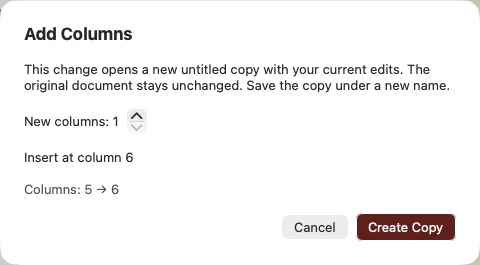
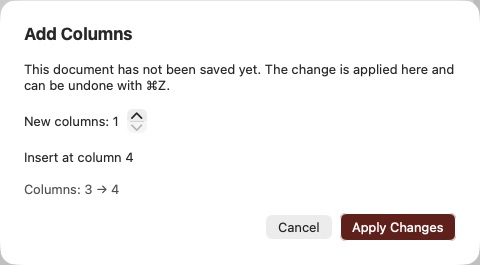
Choose File → New or ⌘N. An empty document starts with one column. Use + to add rows. For more columns, choose Table → Add Columns… or the same command in the Columns toolbar menu. Set the number of new columns and click Apply Changes. For example, add three new columns for a total of four.
In an empty document this creates an empty first row. Enter your headings there and use + to add data rows. Turn Header row off if the first row already contains data. Until the document has been saved, you can add, delete and move its columns directly. Use ⌘Z to undo changes. Save the document with ⌘S under a suitable name.
To enter or change headings with Header Row enabled, click a column title and press Return, or choose Edit Column Heading from its menu.
Open CSV files by double-clicking
On first launch, Komma CSV offers to open CSV files when you double-click them. Choose Set as Default App for CSV or Not Now. Closing the offer also skips this step; it will not appear on every launch.
You can change the association later in Komma CSV → Settings… → CSV files using Set as Default App for CSV. Confirm any macOS prompt. Once the association is confirmed, Settings shows that Komma CSV is the default app. This affects CSV files; TSV and text files keep their existing associations.
If an error occurs, you can retry. Alternatively, select a CSV file in Finder, open Get Info (⌘I), select Komma CSV under Open with, then click Change All…. You can also use these steps to switch back to another app later.