Import and export CSV formats
Match the file format to the program that produces or consumes your data.
Choose an import format
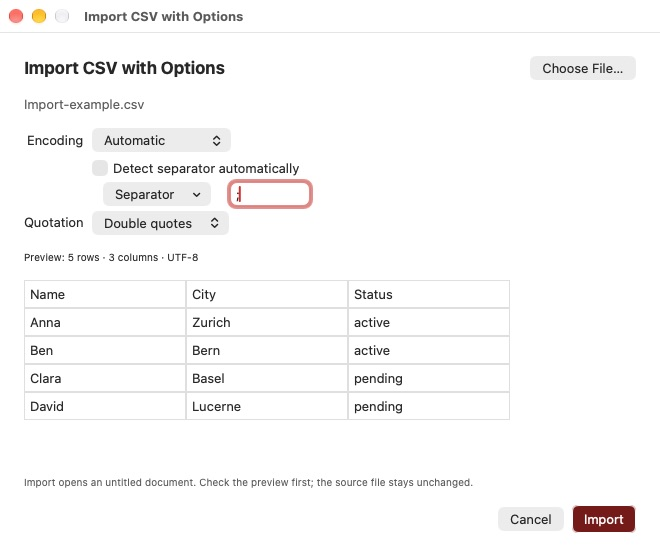
- Choose File → Import CSV with Options….
- Click Choose File….
- Start with Automatic encoding. If accented or other letters look wrong, choose the encoding used by the source program.
- If several values appear together in one column, turn off Detect separator automatically. Choose the correct separator or enter exactly one custom character.
- Choose the quotation style used in the file: double quotes, single quotes or no quotes. Double quotes are suitable for ordinary CSV files.
- Check the first eight rows in the preview and click Import.
Import opens a new untitled document and leaves the source file unchanged. Press ⌘S to save the new document under its own name.
Save a CSV variant
Choose File → Save CSV Variant…. The dialog starts with the open document’s settings. Use Preset offers CSV/UTF-8, Excel with comma or semicolon and a UTF-8 BOM, Excel Unicode with UTF-16 LE and tabs, TSV, Windows-1252 and Classic Mac. You can then adjust every setting.
Click Save… and choose a filename and location. The entire current table is exported, regardless of checked rows. The open document keeps its existing format settings. Choose a different filename if you want to preserve the original.
Understand encodings and BOMs
An encoding determines how text is stored in a file. UTF-8, for example, can store accented letters, international characters and emoji.
BOM stands for Byte Order Mark. Think of it as a small, normally invisible label at the very beginning of a file: it helps a program recognise the Unicode encoding. For UTF-16 and UTF-32, it also identifies the order of the stored bytes. It is not one of your table values and does not add a row or column.
When do I need it? A BOM is optional for UTF-8. Under File → Save CSV Variant…, select Include BOM if the receiving program needs this marker. The Excel presets already include the appropriate setting. If an import explicitly requires “UTF-8 without BOM”, leave the option off. A BOM does not repair text that is already damaged; use Character Encoding Correction for that.
Import and export support:
- UTF-8
- UTF-16 LE and BE
- UTF-32 LE and BE
- Windows-1250, Windows-1251 and Windows-1252
- ISO-8859-1 and ISO-8859-2
- Mac Roman
- Shift JIS and EUC-JP
- ASCII
Include BOM is available for Unicode encodings. UTF-16/32 without a BOM is detected automatically only when there is enough evidence; otherwise select it manually. Legacy encodings often cannot be identified unambiguously. Check the preview, especially accented and other non-ASCII characters.
Separators, quotes and line endings
The separator divides a row into individual values. TSV means a table with tabs as separators.
The separator can be a comma, semicolon, tab, pipe, colon or one custom character. Double or single quotation marks inside a quoted field are escaped by doubling them. Quote all fields also encloses fields that contain no special characters.
Choose LF for Unix/macOS, CRLF for Windows or CR for Classic Mac. Final line break controls the end of the last row; line breaks within cell contents are preserved.
Without quotes, cells containing separators or line breaks cannot be exported unambiguously. Komma CSV rejects those combinations with an error. An empty final row without a final line break also requires quotes.
Excel and sep= directives
The Excel presets combine suitable encodings, BOMs and Windows line endings. If the receiving program requires it, enable Excel separator directive (sep=). Komma CSV then adds a line such as sep=; before the data. On import, Komma CSV recognises this complete first line as format metadata.
Not every program understands this Excel convention; others may display the line as data. The option is therefore initially disabled in the presets. Quote an actual first data cell such as sep=; to distinguish it from a directive.