Find and select
Use checkboxes to select entire rows. A search condition can set this selection automatically.
Select matching rows
- Open search with ⌘F.
- Enter text or a regular expression.
- Optionally choose one column and enable Aa for case-sensitive matching.
- Click Find and Select.
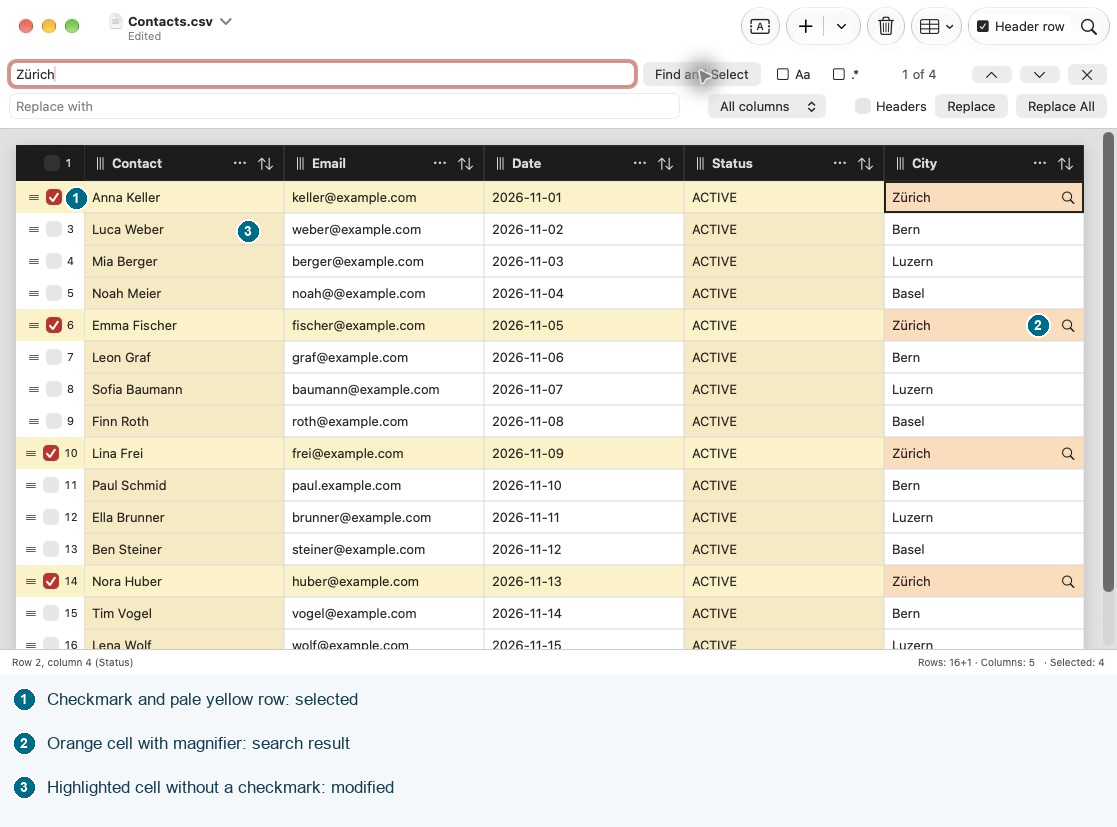
All matching data rows are checked, replacing the previous selection. The header row is always excluded, even when the search includes headings. No matches clears the selection. An empty or invalid expression leaves it unchanged.
Other rows remain visible. If you change the search text, click Find and Select again to update the checkboxes.
Understand colours and selection
Selected rows have a pale yellow background in light appearance. Cells containing search matches are highlighted in orange while search is open; the current match has a coloured outline. Match highlighting takes precedence over selection highlighting. Edited cells are also marked. Dark appearance uses darker versions of these colours.
Closing search keeps the checkboxes selected. You can change them individually or use the selection to delete rows or limit character encoding correction.