Data Maintenance
Use Data Maintenance to clean cell contents and validate column values.
Clean whitespace and line breaks
Check Surrounding Whitespace… repeats the opening check. If matches are found, you choose whether to remove them; otherwise a confirmation appears. The existing Character Encoding Correction… is also available here.
For Collapse Repeated Whitespace and Replace Line Breaks with Spaces, choose Entire Table or Active Column. Repeated whitespace inside a value becomes one ordinary space; leading and trailing whitespace is preserved by this action. The line-break action supports Windows, Mac, Unix and Unicode line breaks. Consecutive breaks become one space.
Both cleanup actions include headings. Feedback lists changed cell contents and their count. Undo each entire action with ⌘Z.
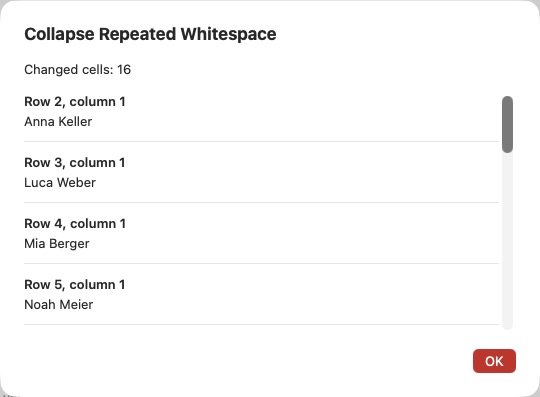
Directly for one column: Double-click its title or click the ellipsis on the selected column. Choose Collapse Repeated Whitespace, Replace Line Breaks with Spaces or Replace Spaces with Nonbreaking Spaces. The first two include the header cell; the nonbreaking-space action leaves it unchanged. Surrounding-whitespace checks and character encoding correction remain in Data Maintenance.
Validate column contents
Click a cell in the desired column, then select Data Maintenance → Validate Active Column → Email Addresses, URLs or Calendar Dates. A defined header row is excluded. Validation changes no values. The report lists the checked count, invalid or empty count, and affected contents with cell positions. Empty cells and missing cells in shorter rows are invalid.
Email addresses and URLs are checked locally for syntax; reachability, deliverability and existence are not checked. URLs require a scheme such as https://; www.example.ch alone is insufficient.
Calendar dates require a valid day, month and year, including leap-year checks. Common formats include 2026-10-14, 14.10.2026, 14/10/26, 10/14/2026, compact forms such as 20261014 and 14102026, and German or English month names such as 14. Oktober 2026, 14 Oct 2026 and October 14th, 2026. Ambiguous day/month orders pass if either interpretation is a valid calendar date; nothing is reformatted. Two-digit years 00–69 mean 2000–2069, and 70–99 mean 1970–1999. Partial dates, relative terms such as “tomorrow”, times alone and timestamps are not accepted as calendar dates. Unusual formats may be reported as invalid and should be reviewed.
Additional checks:
- IP Addresses: IPv4 such as
192.168.1.1and IPv6 such as2001:db8::1, without ports, masks or CIDR suffixes. - Plausible Phone Numbers: 7–15 digits, optional leading
+, common spaces, parentheses, dashes, dots and slashes; extensions usingext.,xorDurchwahlare supported. This checks plausibility, not actual allocation or reachability. Short emergency numbers do not pass as regular phone numbers. - Integers: digits with an optional
+or-, without decimal or grouping separators. - Decimal Numbers: decimal point or comma, common thousands groups using apostrophes, spaces, points or commas, and scientific notation such as
1.2e-3. Examples:1234.56,1’234.56,1.234,56,1,234.56. Whole numbers also pass as decimal numbers. Values are checked without reformatting.
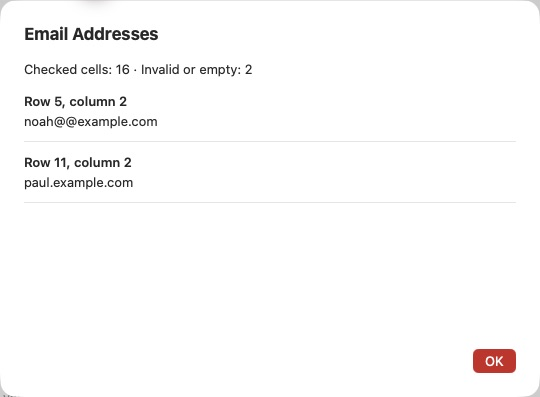
Shortcut through the column menu: Double-click the desired title and choose a check under Validate Column. All seven checks are available here; a defined header row is always excluded.
Standardize case
For columns: Click a data cell to use its column, or select several column titles with Shift or Command. Choose Data Maintenance → Change Case in Active Column → Uppercase or Lowercase. When several columns are selected, the menu is called Change Case in Selected Columns and processes all data cells in those columns. Checked rows do not restrict this column action.
For rows: Select the desired rows using their numbers or checkboxes, then choose Data Maintenance → Change Case in Selected Rows → Uppercase or Lowercase. This processes all existing cells in those rows, regardless of any column selection. If no rows are checked, Change Case in Active Row uses the active cell’s row.
Through context menus: Click the ellipsis (⋯) on an already selected column or row, or right-click its title or number. Change Case also uses the corresponding multiple selection; for several items, the menu name specifies selected columns or rows. Right-clicking an unselected item offers the action for that item alone. Use the ellipsis or a right-click to preserve a multiple selection: an ordinary click on a title or number would replace it with a single selection.
A defined header row is always preserved, even if checked. If only the header is selected, the row action is disabled. Without an enabled header, the first row is treated as ordinary data. Empty cells stay empty and shorter rows are not padded with extra cells.
The report shows the count, contents and positions of cells that actually changed. Command-Z undoes the entire action across all affected rows or columns; Shift-Command-Z redoes it. Commands in Data Maintenance are available only while input focus is in the grid. They are disabled when the cursor is in the search field, for example.
Convert special characters globally
Choose a target under Data Maintenance → Convert Special Characters in Entire Table. Every cell is processed, including headings. Feedback lists changed contents; ⌘Z undoes the entire conversion.
- Unicode (hex): numeric character references, for example
ä→ä. - Unicode (decimal): decimal references, for example
ä→ä. - HTML Entities: common named entities such as
ä,&and<, with numeric references for other characters. - Control Character Escapes: actual line breaks and tabs become visible sequences such as
\n,\rand\t. Existing backslashes are doubled to distinguish them from escapes. Unicode line separators use forms such as\u{2028}. - URL Encoding (UTF-8): encodes each cell as one URL component.
äbecomes%C3%A4and a space%20;/,?,&and%are also encoded. Use this for values within URLs, not to preserve a complete web address. - Mail Encoding (Quoted-Printable): represents UTF-8 bytes as
=XXfor MIME content, for exampleä→=C3=A4. Long lines receive soft breaks. This does not create an email or encode a subject header.
Numeric references and HTML entities convert non-ASCII characters, control characters and HTML-sensitive characters including &, <, > and quotation marks. Ordinary letters, digits and spaces remain intact. These actions change stored cell contents, not just their appearance. Reapplying an encoding may encode existing escapes again.