
SVG Unify · Reduce · Use
SVGuru helps you shrink SVG files, build reusable icon libraries, and prepare icons and logos for web apps. All processing stays on your Mac.
BUILD AND EDIT SVG SPRITE LIBRARIES
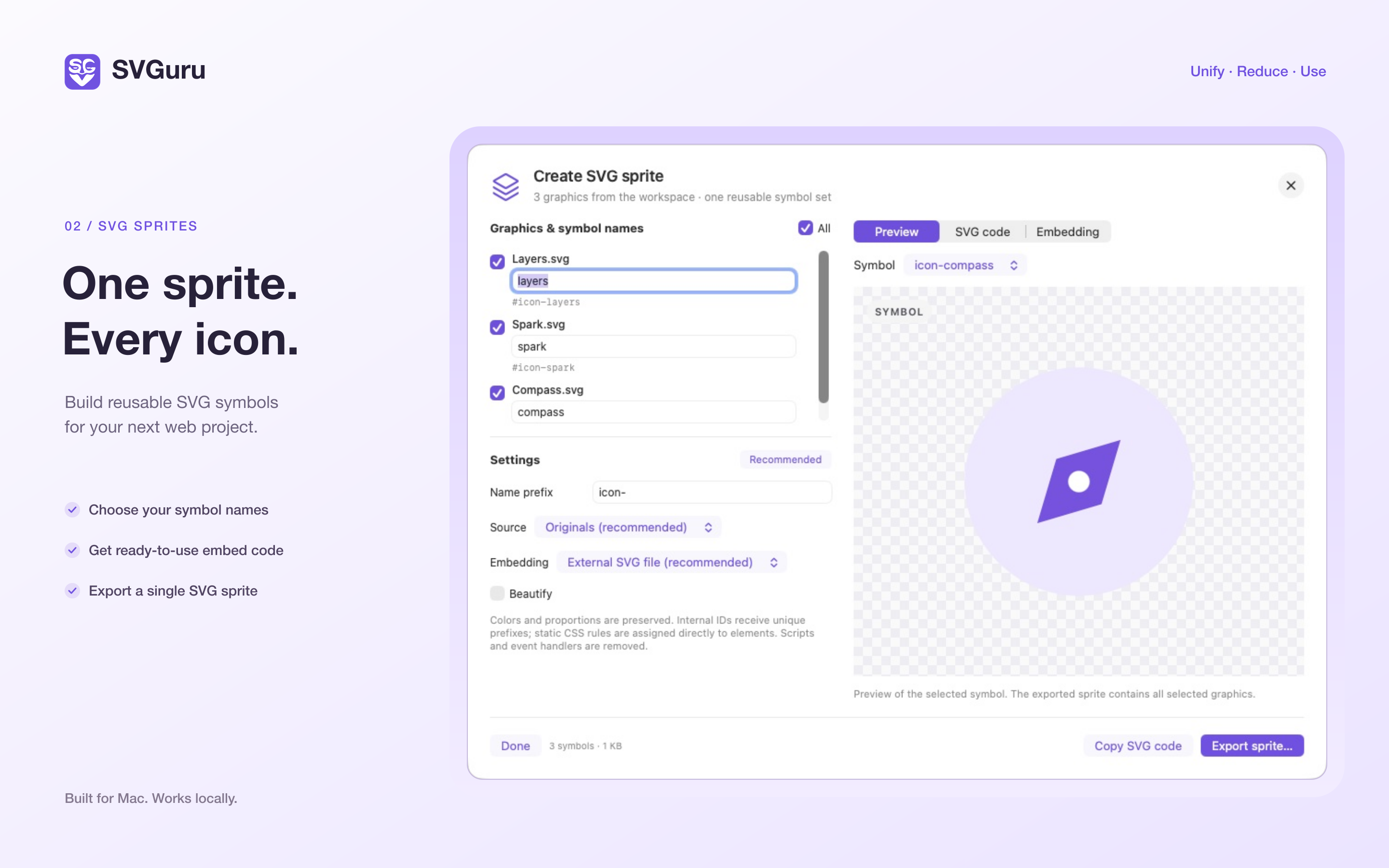
Start with an empty library or build a sprite from the SVGs in your workspace. Choose a shared 16 × 16, 20 × 20, or 24 × 24 grid, or enter custom dimensions. Set the padding and symbol name prefix. When building from the workspace, see your changes in a live grid preview.
SVGuru converts simple shapes such as circles, rectangles, and polylines to paths on import. It scales and centers each icon proportionally. If an icon’s viewBox dimensions match the library, you can keep its existing grid. Imported icons use currentColor so you can style them with your website’s CSS.
Reopen a library you exported from SVGuru to add more icons or rename symbols. Your viewBox, padding, and prefix are restored. Export the library as a standalone SVG file or as inline SVG for HTML, and copy an embed snippet for any symbol.
OPTIMIZE SVG FILES
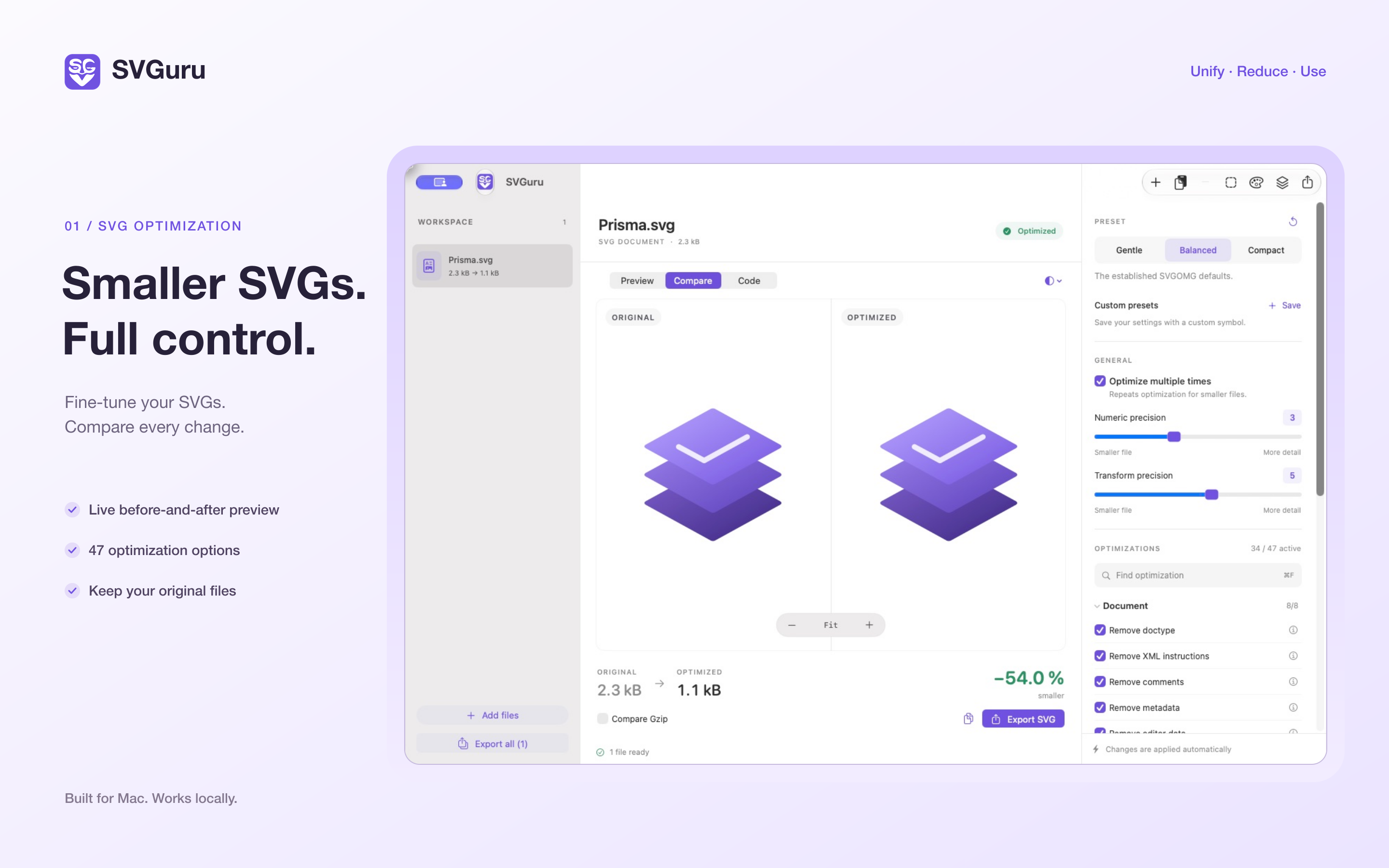
Compare the original and optimized SVG side by side and see how the file size changes, with an optional gzip comparison. Use the built-in SVGO presets or save your own settings for repeat workflows. View syntax-highlighted SVG source, format it for readability, or export multiple optimized files at once.
CREATE MASKABLE AND MONOCHROME ICONS
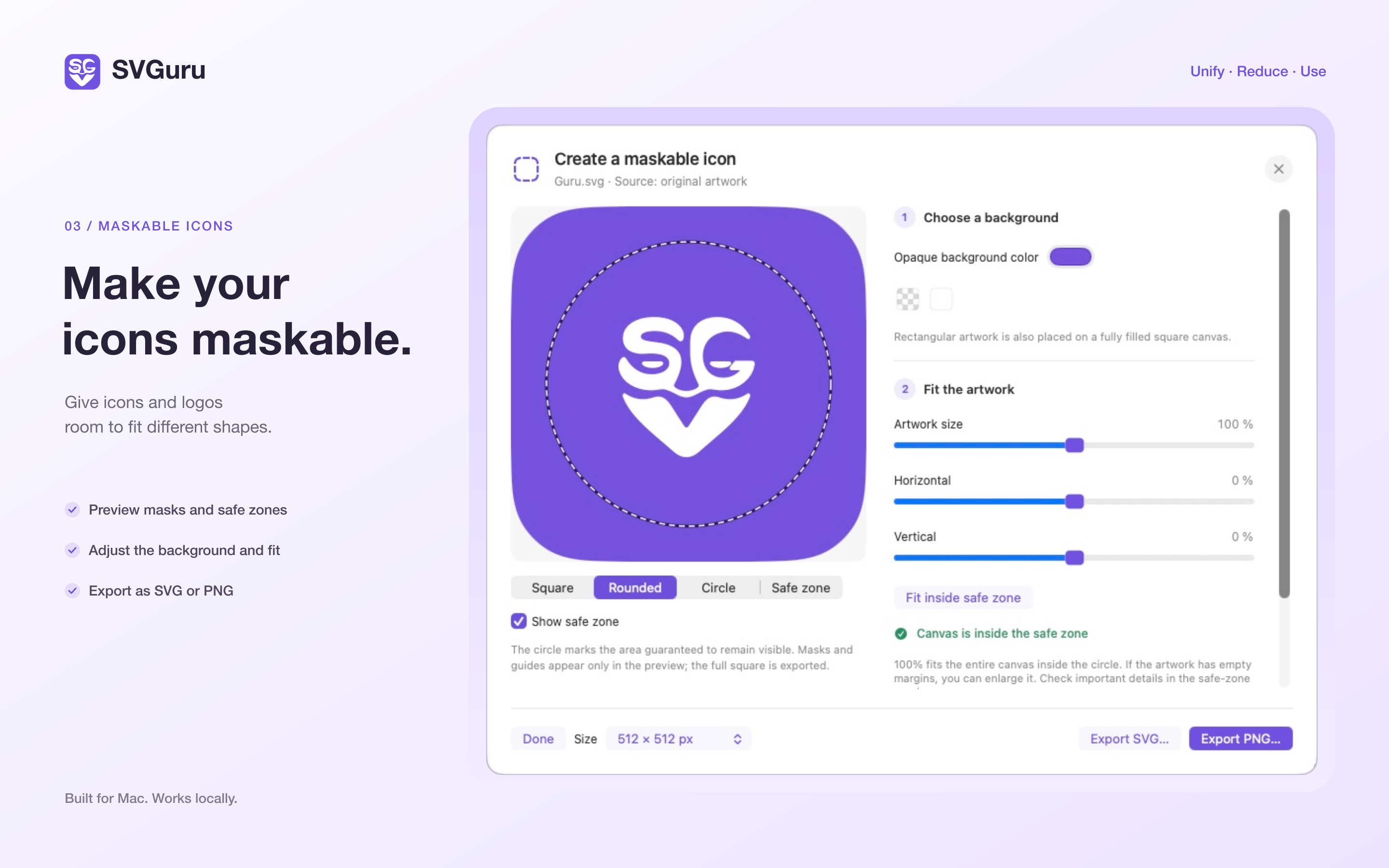
Turn icons and logos into maskable web app icons. Preview common mask shapes and check your artwork against the circular safe zone. Adjust the size, position, and background, then export as PNG or SVG.
Use a before-and-after preview to convert artwork to a single fixed color or to CSS-controlled currentColor. A dedicated SVG export preset is available for Safari pinned tabs.